Discover Reliable Printers and Expert Guide
We connect businesses and individuals with high-quality printers. Empower your workflow with sustainable solutions—backed by expert advice and comprehensive support for seamless printing experiences.
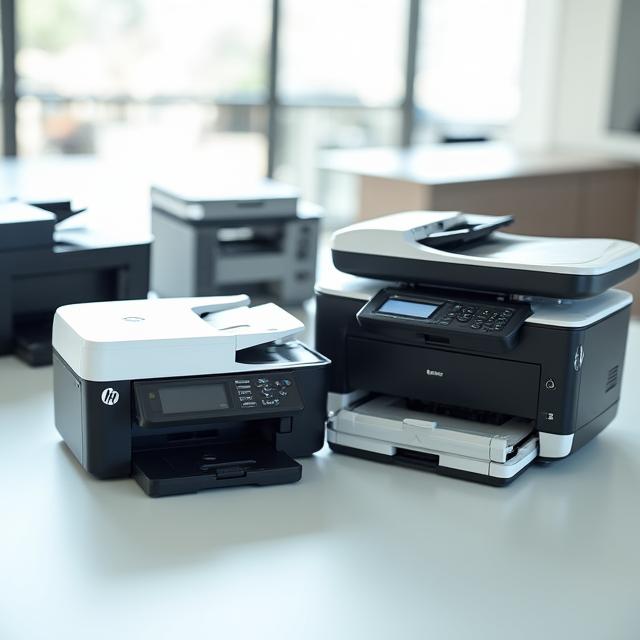
Featured Printer Selection: Top Models Ready to Buy
Explore our curated selection of 20 popular printers . Each listing includes specs, pricing, warranty, and a secure option to buy, so you can find the perfect match for home, office, or business needs at unbeatable value.

LaserJet Pro M404n
- 38 ppm monochrome printing
- Network ready with Ethernet
- 250-sheet input tray
- Energy Star certified
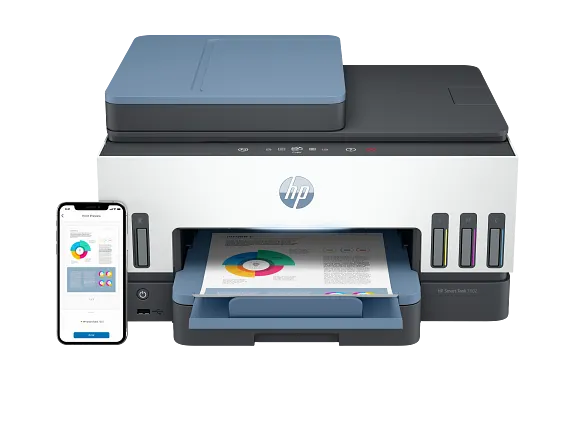
HP Smart Tank 7602 All-in-One, AI-enabled0
- All-in-one: Print, scan, copy, fax
- Wireless and mobile printing
- Auto 2-sided printing
- 35-page auto document feeder

HP Envy 6555e All-in-One Printer with 3 Months of Instant Ink for free with HP+, AI-enabled
- 32 ppm monochrome printing
- Wireless connectivity
- Automatic duplex printing
- 250-sheet paper capacity
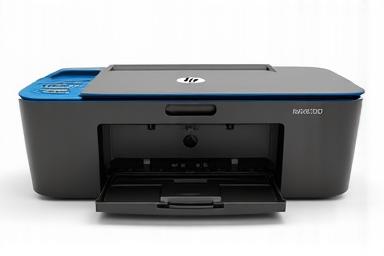
OfficeJet Pro 8025
- Color all-in-one printer
- 20 ppm color, 20 ppm black
- Smart tasks and voice-activated
- Dual-band Wi-Fi connectivity
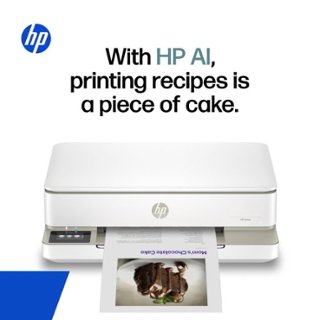
HP DeskJet 2827e All-in-One Printer with 3 Months of Instant Ink for free with HP+, AI-enabled
- Cartridge-free printing
- Includes 2 years of ink
- Print, scan, copy functions
- Wireless and mobile ready

HP OfficeJet 200 Mobile Printer
- All-in-one laser printer
- 36 ppm monochrome speed
- 50-page automatic feeder
- Cloud connectivity enabled
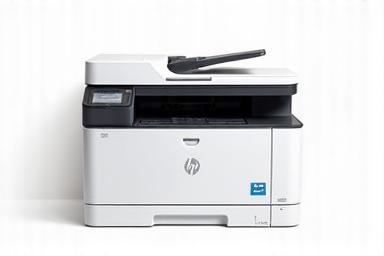
LaserJet Pro M428fdw
- Print, scan, copy, fax
- 40 ppm printing speed
- Built-in security features
- Touchscreen display
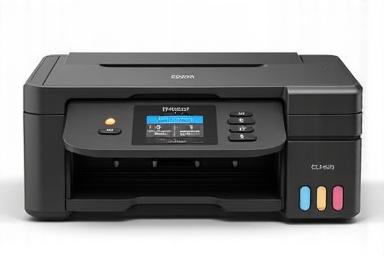
WorkForce ST-C4000
- Supertank color printer
- 24 ppm color printing
- Cartridge-free system
- Up to 2 years of ink included
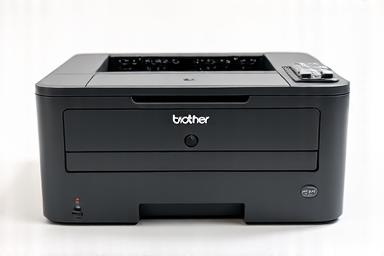
HL-L8360CDW
- Color laser printer
- 33 ppm color and black
- Duplex printing standard
- Advanced security features
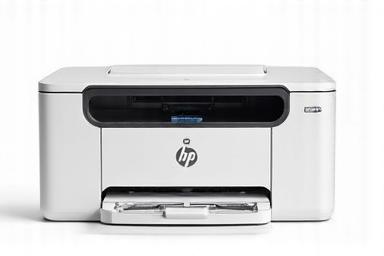
Color LaserJet Pro M454dw
- 28 ppm color printing
- Wireless and Ethernet
- Automatic 2-sided printing
- JetIntelligence technology
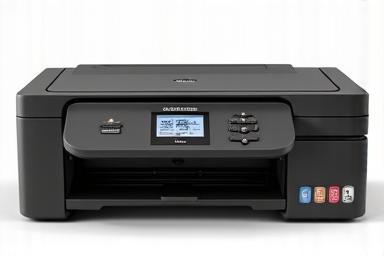
Expression Premium XP-7100
- Photo quality printing
- 5-color Claria ink system
- Print, scan, copy functions
- CD/DVD printing capability
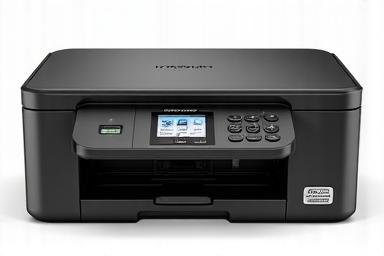
MFC-J995DW INKvestment
- Extended ink cartridge system
- 12 ppm color, 12 ppm black
- All-in-one functionality
- Up to 1 year of ink included
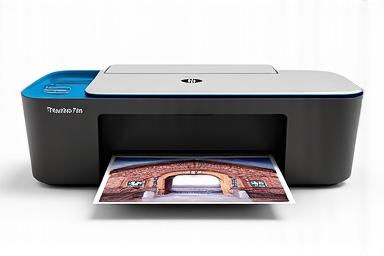
Envy Photo 7855
- Premium photo printing
- Borderless printing capability
- Touchscreen control panel
- Dual-band wireless
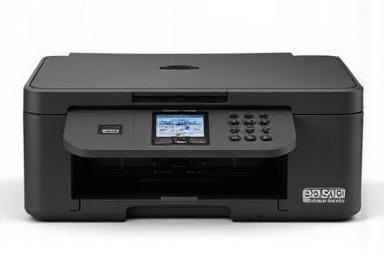
WorkForce WF-2860
- Compact all-in-one design
- 10 ppm color, 14 ppm black
- Auto 2-sided printing
- 30-page auto feeder
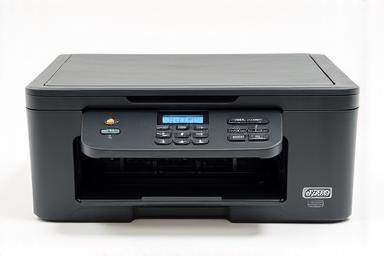
DCP-L2550DW
- Monochrome laser MFP
- 36 ppm printing speed
- Print, copy, scan
- 250-sheet paper tray
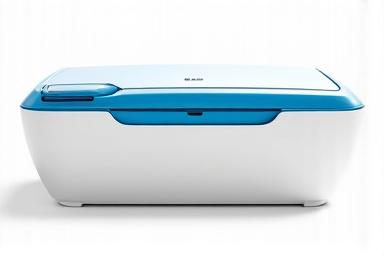
DeskJet 3755 All-in-One
- World's smallest all-in-one
- 8 ppm color, 8 ppm black
- Perfect for small spaces
- Wireless mobile printing
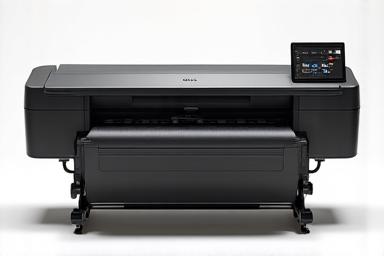
EcoTank Photo ET-8550
- Wide-format photo printer
- 6-color Claria ink system
- Prints up to 13" x 19"
- Cartridge-free operation
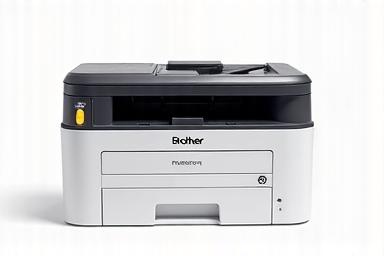
HL-L3290CDW
- Color laser printer
- 25 ppm printing speed
- Wireless and mobile ready
- Automatic duplex printing
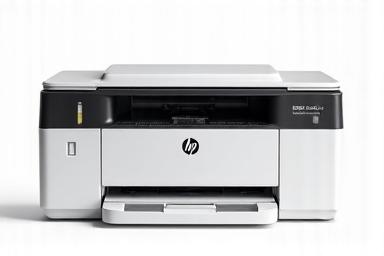
Neverstop Laser 1001nw
- Toner reload system
- 21 ppm monochrome
- Wireless connectivity
- Compact footprint
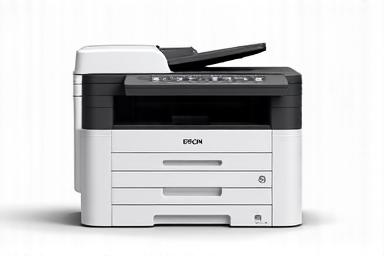
WorkForce Pro WF-C869R
- Business inkjet MFP
- 24 ppm color and black
- Replaceable ink pack system
- Advanced finishing options
Printer Parts & Accessories: Affordable Upgrades and Replacements
Browse a wide range of genuine and gently-used printer parts for major brands. Find ink cartridges, print heads, rollers, and maintenance kits to extend the life of your device while keeping costs low and performance high.
Ink Cartridges & Toner
Premium quality replacement cartridges compatible with HP, Epson, and Brother printers at fraction of retail cost. Genuine OEM and high-quality compatible options available.
Print Heads & Drums
Restore print quality with certified print heads and imaging drums. Each component tested for optimal performance and backed by our quality guarantee.
Rollers & Feed Kits
Eliminate paper jams and feed issues with genuine replacement rollers and maintenance kits. Professional-grade components for reliable long-term operation.
Power Supplies & Cables
Complete selection of printer power adapters, USB cables, and network cables. All tested and certified for safety and compatibility.
Paper Trays & Covers
Replacement paper trays, cassettes, and exterior covers for all major printer models. Keep your equipment looking and functioning like new.
Maintenance Kits
Comprehensive maintenance kits with all essential components for regular servicing. Extend printer lifespan and maintain peak performance.
Troubleshooting Guides & Essential Printer Tips
HP LaserJet: Clearing Paper Jams
Follow these steps to safely clear a paper jam from your HP LaserJet printer and prevent damage.
- Power Off: Turn off the printer and unplug it from the power source for safety.
- Access Jam: Open all doors and trays to locate the jammed paper. Check the input tray, output bin, and rear access door.
- Remove Paper: Gently pull the paper out with both hands in the direction of the paper path. Avoid tearing it.
- Check for Debris: Inspect the paper path for any small, torn pieces of paper and remove them carefully.
- Restart: Close all doors, plug the printer back in, and turn it on. Print a test page.
HP OfficeJet: Fix Streaky Prints
Improve print quality by cleaning the printhead and aligning the printer for your HP OfficeJet.
- Use HP Software: Open the HP Smart app or printer software on your computer.
- Run Cleaning Cycle: Navigate to 'Printer Maintenance' or 'Tools' and select 'Clean Printhead'. This may require up to three levels of cleaning.
- Align Printer: After cleaning, run the 'Align Printer' or 'Align Printhead' utility for optimal quality.
- Check Ink Levels: Ensure you are using genuine HP ink and that the cartridges are not empty or expired.
- Print Quality Report: Print a diagnostic or quality report to check if the issue is resolved.
HP DeskJet: Fix 'Printer Offline'
Troubleshoot connectivity issues when your HP DeskJet printer appears as 'Offline' on your computer.
- Restart Devices: Turn off your printer, computer, and Wi-Fi router. Wait 60 seconds, then turn them back on in order.
- Check Connection: Ensure the printer's Wi-Fi is enabled and connected to the same network as your computer.
- Run HP Print and Scan Doctor: Use this free HP tool to automatically diagnose and fix connectivity problems.
- Check 'Use Printer Offline': In your PC's printer queue, ensure 'Use Printer Offline' is unchecked under the 'Printer' menu.
- Reinstall Driver: If problems persist, reinstall the latest printer drivers from HP's support website.
HP Envy: Replace Ink Cartridges
A step-by-step guide to properly replacing ink cartridges in your HP Envy series printer.
- Power On: Make sure the printer is turned on.
- Access Cartridges: Open the ink cartridge access door. The carriage will move to the center.
- Remove Old Cartridge: Lightly press down on the old cartridge to release it, then pull it out of its slot.
- Prepare New Cartridge: Unpack the new cartridge and remove the protective plastic tape, avoiding contact with the nozzle.
- Insert New Cartridge: Slide the new cartridge into the correct slot until it clicks into place. Close the access door.
HP LaserJet: Factory Reset
Resolve persistent software issues by performing a factory reset on your HP LaserJet printer.
- Backup Settings: Note any custom network or tray settings, as they will be erased.
- Access Service Menu: On the printer's control panel, navigate to 'Setup' > 'Service' > 'Restore Defaults'.
- Confirm Reset: Select 'OK' or 'Yes' to confirm the action. The printer will restart automatically.
- Reconfigure Printer: After the reset, you will need to reconfigure settings like language, location, and network connection.
- Consult Manual: For specific models, the reset process may vary. Always consult your user manual.
Brother Laser: Replace Toner
Learn how to correctly replace the toner cartridge and reset the drum counter on Brother laser printers.
- Open Front Cover: Turn the printer on and open the front cover to access the toner and drum unit.
- Remove Assembly: Pull out the entire drum and toner cartridge assembly.
- Release Toner: Press the green lock lever on the drum unit to release and remove the old toner cartridge.
- Prepare New Toner: Unpack the new toner cartridge and gently shake it side-to-side to distribute the toner evenly.
- Install & Reset: Insert the new toner into the drum until it clicks. Re-insert the assembly, leave the cover open, press 'Clear', then 'Start', and use arrows to reset the counter. Close the cover.
Brother Inkjet: Fix 'Cannot Detect' Error
Troubleshoot the common 'Cannot Detect' error after installing a new ink cartridge in a Brother inkjet printer.
- Re-seat Cartridge: Remove the new ink cartridge and reinstall it firmly until you hear a click.
- Check for Tape: Ensure all protective yellow or orange tape has been removed from the cartridge's vent and chip.
- Clean Contacts: Gently wipe the gold contact chip on the cartridge and inside the printer with a dry, lint-free cloth.
- Power Cycle: With cartridges installed, unplug the printer for 60 seconds, then plug it back in and turn it on.
- Update Firmware: Check the Brother support website for the latest firmware, as updates can improve cartridge recognition.
HP LaserJet: Resolving '49 Service Error'
Troubleshoot a 49 service error, which typically indicates a firmware or communication problem.
- Power Cycle: Turn the printer off, wait 30 seconds, and turn it back on. This resolves temporary glitches.
- Isolate Print Job: The error can be caused by a corrupt print job. Clear the print queue on all connected computers.
- Check Connections: Ensure all network and USB cables are securely connected. Try a different cable or port.
- Update Firmware: Visit the HP support website to download and install the latest firmware for your printer model.
- Perform Cold Reset: If the error persists, perform a cold reset to restore firmware to factory defaults (consult manual for steps).
HP Smart App: Installing on Windows
Set up your HP printer on a Windows computer using the essential HP Smart app for printing and scanning.
- Go to MS Store: Open the Microsoft Store on your Windows 10/11 PC and search for "HP Smart".
- Install App: Click 'Get' or 'Install' to download and install the application.
- Add Printer: Open HP Smart and click 'Add Printer' or the plus icon. The app will search for printers on your network.
- Follow Setup: Select your printer from the list and follow the on-screen instructions to complete the setup and connect to Wi-Fi if needed.
- Print Test Page: Once added, print a test page from within the app to confirm the setup was successful.
What Our Customers Say
Read reviews from businesses and home users who rely on Deakjet refurbished printers and support services.
I was skeptical about refurbished, but the HP LaserJet Pro is flawless! Saved us hundreds and the quality is indistinguishable from new. Deakjet's support team was incredibly helpful during setup.
Small Business Owner, SF
Excellent value and commitment to sustainability. We got an Epson EcoTank for our home office. The warranty gave me peace of mind, and the printer runs perfectly.
Home User, Oakland
Deakjet found us a hard-to-find Brother MFC unit and delivered it quickly. Their focus on testing and quality control really shows. Highly recommend their parts service too!
IT Procurement Manager
About Deakjet Printers
Founded in 2013 in San Francisco, Deakjet Printers refurbishes and resells high-quality printers from HP, Epson, and Brother. Our mission is to provide cost-effective, sustainable printing solutions while offering expert support, genuine parts, and clear warranty options to businesses and home users.
Our Story
What began as a small repair workshop has grown into a trusted provider of refurbished printers and maintenance services. We emphasize quality testing, data sanitization, and environmentally responsible practices to extend device lifecycles and reduce e-waste.
- Established: 2013
- Headquarters: San Francisco, CA
- Services: Refurbishing, parts & accessories, technical support, warranty repairs

Contact Deakjet Printers
Have questions or need a quote? Reach out by phone, email, or visit our location. We're here to help.